Installation & Logging In (Mobile App)

Download the TSD DEALER mobile app on your iOS or Android device to create a completely mobile and contactless experience and expedite everyday activities at your operation.

Supported Devices

Mobile Devices

iOS: The iOS mobile app is compatible with an Apple tablet or smart phone device (such as an iPad or iPhone) and requires at least the current OS version, or one version prior. See "System Requirements & Supported Devices" for more information.

Android: The Android mobile app is compatible with a tablet or smart phone device and requires at least the current OS version, or one version prior.

Mobile Card Readers

For locations with TSD Payments, depending on your provider, the following card reader devices are supported with the mobile app for capturing card tokens to be used for payment:

  • TSD Payments provided by Stripe:
    • Stripe Reader M2 mobile card reader; this device uses Bluetooth LE to connect to a paired mobile device.
    • ClosedHow to pair a Stripe Reader M2 with your mobile device and install firmware updates:

      1. Make sure you've allowed Bluetooth to use the card reader.
      2. After Bluetooth access is allowed, make sure the card reader device is powered on, charged to more than 50%, and in range to your mobile device.
      3. Log into the mobile app and navigate to Settings () > PAIR BBPOS READER. (A Pair BBPOS option is also available during the mobile open process.)
      4. If a card reader device is already paired and connected, the app displays a message: "Are you sure you want to pair another device? Current device will be disconnected." Tap OK to continue pairing another device.
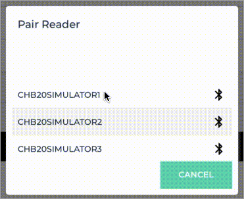
      5. On the Pair Reader dialog, choose the Device ID of the card reader.
      6. The system first checks whether a firmware update is available for the device, and whether the update is required or optional.
        • If required, the update will begin installation automatically.
        • If optional, an Optional Update message is displayed: "There's an update for this reader device's firmware from [Version] to the [Latest Version]. It should take approximately 1 to 2 minutes. Do you wish to update?" Tap Yes to continue updating the device, or No to return to the agreement without updating the device at this time. Note that the update may become required in the future.
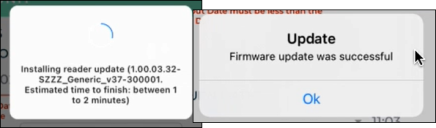
      7. If performing a firmware update, the update may take 1 to 2 minutes. The card reader's LED light next to the power button rapidly flashes blue and orange when it begins installing a software update. A message is displayed when the firmware update is successful. When the card reader is ready to use, the LED light will return to a slow blinking blue light.
      8. If pairing is successful, the Device ID of the connected chip reader is also displayed below the Charges grid. You can now use the device to take payments.
  • TSD Payments provided by Clutch:
    • BBPOS Chipper 2X BT mobile card reader; this device uses Bluetooth LE to connect to a paired iOS mobile device.
    • ClosedHow to pair a BBPOS Chipper 2X BT mobile card reader with your mobile device and install firmware updates:

      1. Make sure you've allowed Bluetooth to use the card reader.
      2. After Bluetooth access is allowed, make sure the card reader device is powered on, charged to more than 50%, and in range to your mobile device.
      3. Log into the mobile app and navigate to Settings () > PAIR BBPOS READER. (A Pair BBPOS option is also available during the mobile open process.)
      4. If a card reader device is already paired and connected, the app displays a message: "Are you sure you want to pair another device? Current device will be disconnected." Tap OK to continue pairing another device.
      5. On the Pair Reader dialog, choose the Device ID of the card reader.
      6. The system first checks whether a firmware update is available for the device, and whether the update is required or optional.
        • If required, the update will begin installation automatically.
        • If optional, an Optional Update message is displayed: "There's an update for this reader device's firmware from [Version] to the [Latest Version]. It should take approximately 1 to 2 minutes. Do you wish to update?" Tap Yes to continue updating the device, or No to return to the agreement without updating the device at this time. Note that the update may become required in the future.
      7. If performing a firmware update, the update may take 1 to 2 minutes. The card reader's LED light next to the power button rapidly flashes blue and orange when it begins installing a software update. A message is displayed when the firmware update is successful. When the card reader is ready to use, the LED light will return to a slow blinking blue light.
      8. If pairing is successful, the Device ID of the connected chip reader is also displayed below the Charges grid. You can now use the device to take payments.

Download the Mobile App

  1. Go to your iOS or Android App Store and download the app.
  2. Sign in with your online credentials.

Logging In

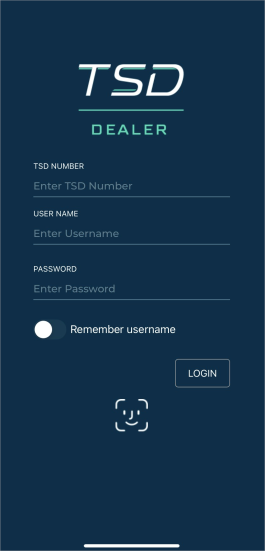
To log directly into mobile app, use the same credentials when accessing the web version of ATMS GEN2.0.

If you've set up Touch ID or Face ID biometric authentication, this ATMS GEN2.0 account will prompt you for your biometric authentication instead of your password. For a seamless log-in, your TSD Number is saved on the log-in screen between sessions.